The Andersons Grain Mobile App Features
How To Login | Contracts | Tickets | Commodity Balances | Location Info | Futures | Main Page
CONTRACTS
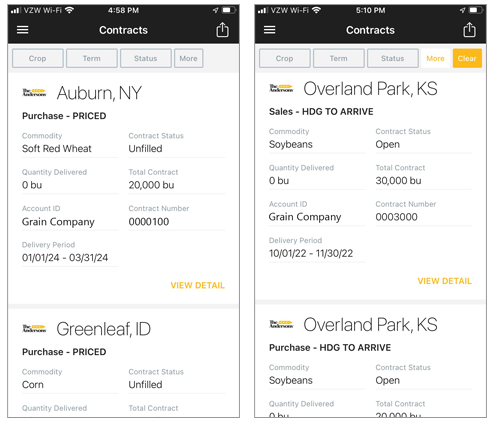
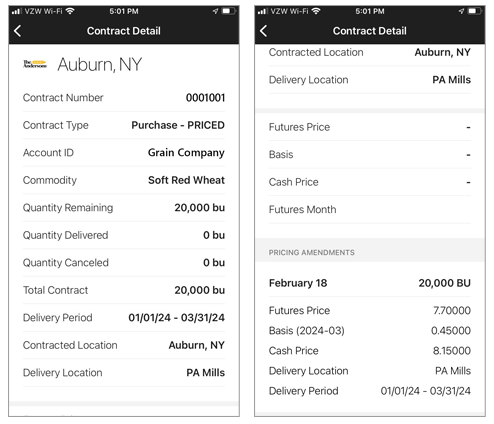
Contracts on The Andersons Grain Mobile App automatically displays by showing the newest Delivery Period date to the oldest Delivery Period date, within a two-year period.
All contracts are displayed as Purchase and Sales:
- Purchase: Seller = producer, Purchaser = The Andersons
- Sales: Seller = The Andersons, Purchaser = producer
Each Purchase and Sales contracts will also show a label in the title to better describe the contract type. Examples of the label includes BASIS, PRICED, FREEDOM, HDG TO ARRIVE and more. Please contact your Merchant for any Purchase and Sales contract questions.
CONTRACT FILTERING OPTIONS
Any filtering options selected for Contracts will not transfer when viewing the Tickets section of the app.
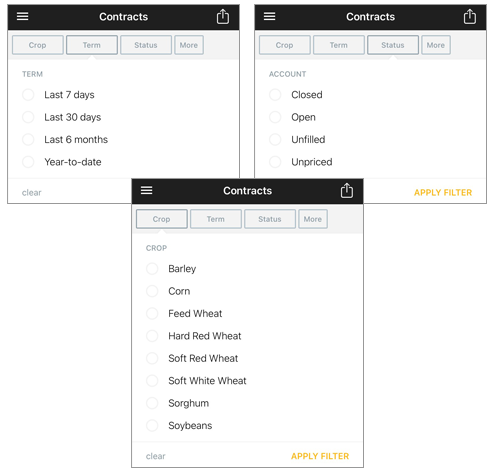
Crop: filter from the list of crop options to see contracts associated. You can choose more than one crop option (EX: Corn and Soybeans). If a crop option not related to any contracts is selected, a no data available message will appear.
Term: filter to see contracts from the last 7 days, 30 days, 6 months and year-to-date. The Andersons Grain Mobile App will only show the contract data from the past two years.
Status: filter to see which contracts are closed, open, unfilled and unpriced. You can choose more than one status option.
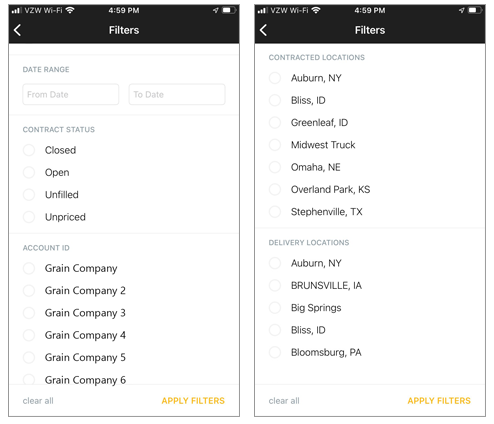
More: the following additional filtering options are available in addition to Crop, Term and Status.
- Date Range: select a certain date range to view contracts associated. The Andersons Grain Mobile App will only show the contract data from the past two years.
- Account ID: if you have more than one account with The Andersons, you will be able to view all contracts associated with these multiple accounts. Each individual account will show up as a filtering option. The app will automatically show contracts for all accounts unless filtering is applied.
- Contracted Locations: if you have more than one Andersons location you have contracts, they will be listed as options to filter. The app will automatically show contracts for all contracted locations unless filtering is applied.
- Delivery Locations: if you have more than one Andersons delivery location relating for your contracts, they will be listed as options to filter. The app will automatically show contracts for all delivery locations unless filtering is applied.
Copy goes here
Need Help?
If you’re a grain customer, please contact your account representative. For assistance logging into GRAINweb, please contact our support team at 419-891-5851, Monday through Friday from 9:00 AM to 4:00 PM EST.